How to Optimize Gaming Mouse Settings Like a Pro
A gaming mouse is only as good as its settings. Even the most advanced hardware can feel slow, inaccurate, or uncomfortable if it isn’t properly configured. Knowing how to optimize gaming mouse settings can dramatically improve your aim, reaction time, and overall gaming performance—whether you play FPS, MOBA, RTS, or casual games.
This guide walks you through every essential adjustment in a clear, professional, and Google-friendly way—without unnecessary jargon or keyword stuffing. Let’s dial in your mouse the right way.
Why Optimizing Gaming Mouse Settings Matters
Gaming mice are designed with customization in mind. Out of the box, they’re rarely set up for your playstyle or hand movement. Optimizing settings helps you:
- Improve aiming precision and tracking
- Reduce hand fatigue during long sessions
- Maintain consistent performance across games
- React faster in competitive situations
Small tweaks can lead to noticeable gains, especially in fast-paced titles.
Understanding Core Gaming Mouse Settings
Before adjusting anything, it’s important to understand what each setting actually does.
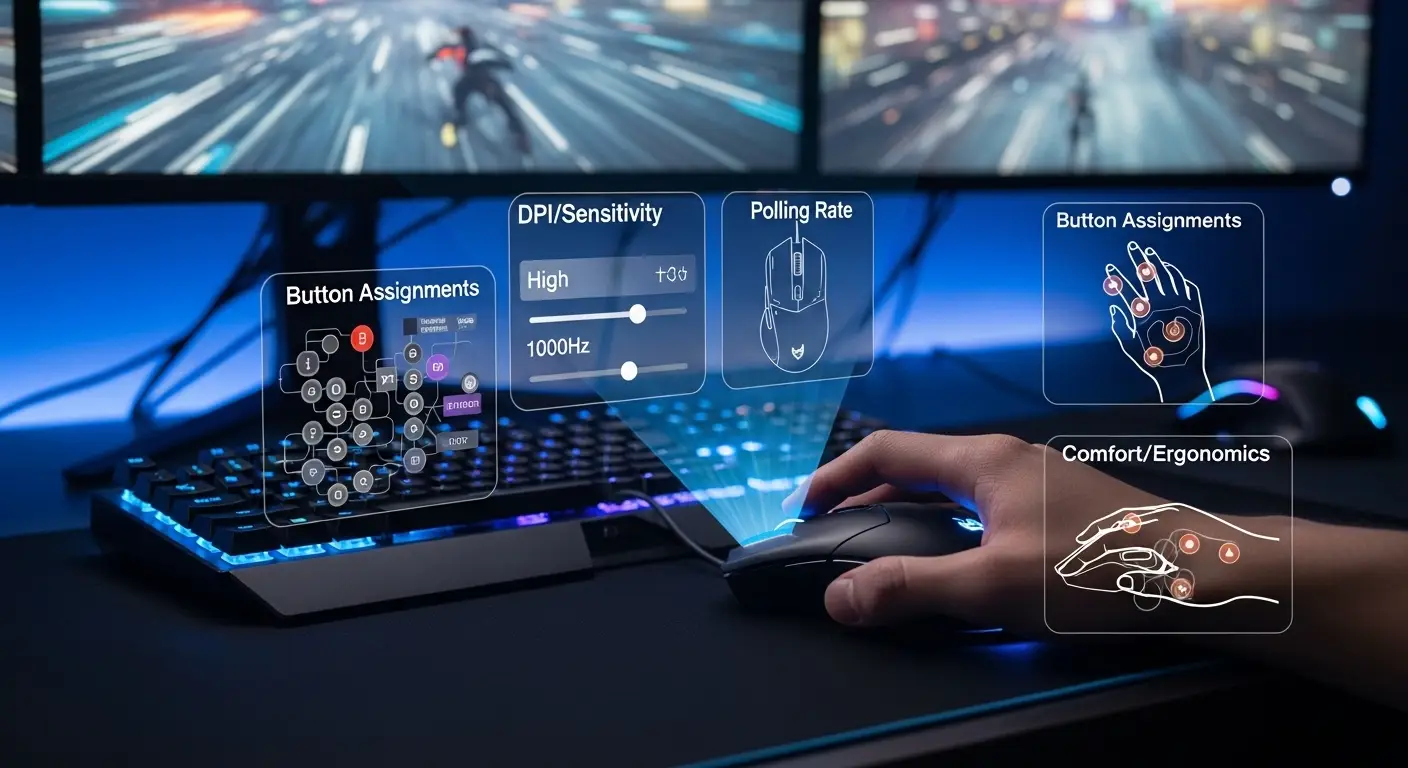
DPI (Dots Per Inch)
DPI controls how far your cursor moves relative to physical mouse movement.
- Low DPI: Slower movement, higher precision
- High DPI: Faster movement, less physical motion
Most gamers perform best between 400 and 1600 DPI, depending on screen size and game type.
Polling Rate
Polling rate defines how often the mouse reports its position to your PC.
- Common values: 125Hz, 500Hz, 1000Hz
- Higher polling rates reduce input delay
For modern systems, 1000Hz is generally ideal and does not negatively affect performance.
Sensitivity (In-Game vs System)
Windows sensitivity and in-game sensitivity work together. Poor balance between the two leads to inconsistent aim.
- Keep Windows pointer speed at the default (middle position)
- Fine-tune sensitivity inside each game
This ensures predictable mouse behavior across applications.
Step-by-Step: How to Optimize Gaming Mouse Settings
Step 1: Set the Correct DPI
Start by choosing a single DPI level instead of switching mid-game.
Recommended starting points:
- FPS games: 400–800 DPI
- MOBA / RTS: 800–1600 DPI
- High-resolution monitors: Slightly higher DPI may help
Consistency matters more than raw speed.
Step 2: Adjust Polling Rate for Responsiveness
Set your polling rate to 1000Hz using your mouse software.
- Reduces input lag
- Improves cursor smoothness
- Works best with modern CPUs
If you experience instability (rare), reduce to 500Hz.
Step 3: Optimize Windows Mouse Settings
Your operating system can interfere with precision if not configured correctly.
Disable Mouse Acceleration
Mouse acceleration changes cursor movement based on speed, not distance—bad for muscle memory.
What to do:
- Turn off “Enhance pointer precision” in mouse settings
- Keep pointer speed at the default middle notch
This ensures 1:1 movement accuracy.
Step 4: Fine-Tune In-Game Sensitivity
Every game engine handles input differently.
Best practice:
- Set DPI first
- Adjust in-game sensitivity slowly
- Test by tracking moving targets
Avoid copying pro settings blindly—hand size, desk space, and playstyle all matter.
Advanced Gaming Mouse Optimization Tips
Once the basics are set, advanced tuning can give you an edge.
Customize Button Mapping
Reassign side buttons to reduce keyboard movement.
Good uses include:
- Push-to-talk
- Melee or reload
- Ability activation
This improves reaction time and comfort.
Adjust Lift-Off Distance (LOD)
Lift-off distance determines how far you can lift the mouse before tracking stops.
- Low LOD is ideal for FPS games
- Prevents cursor drift when repositioning
Many gaming mice allow LOD adjustment through software.
Surface Calibration Matters
Your mousepad affects sensor performance.
Tips:
- Use a quality mousepad
- Calibrate the sensor for your surface
- Avoid glossy or reflective desks
Cloth pads offer control; hard pads offer speed. Choose based on preference.
Optimizing Settings by Game Type
FPS Games
Precision is everything.
- Low DPI (400–800)
- Low to medium sensitivity
- Large mousepad
- Low lift-off distance
This setup supports accurate flick shots and tracking.
MOBA and RTS Games
Speed and multi-tasking matter more than pixel-perfect aim.
- Medium DPI (800–1600)
- Slightly higher sensitivity
- Button mapping for abilities
This allows quick screen navigation without excessive hand movement.
Casual and Single-Player Games
Comfort and flexibility take priority.
- Moderate DPI
- Balanced sensitivity
- Custom buttons for convenience
There’s no need to push competitive limits here.
Common Mistakes to Avoid
Even experienced gamers fall into these traps:
- Constantly changing DPI mid-game
- Using mouse acceleration
- Copying settings without testing
- Ignoring ergonomics and grip style
Optimization is personal. What works best is what feels consistent and comfortable over time.
Testing and Refining Your Settings
Optimization isn’t a one-time task.
How to test effectively:
- Use aim trainers or practice modes
- Track consistency over several sessions
- Make small adjustments only
Give each change time before deciding whether it works.
Final Thoughts
Learning how to optimize gaming mouse settings is one of the most cost-effective ways to improve gaming performance. You don’t need new hardware—just the right configuration.
By setting the correct DPI, disabling acceleration, fine-tuning sensitivity, and customizing buttons, you create a setup that feels natural, accurate, and reliable. Over time, this consistency builds muscle memory, confidence, and better results in every game you play.
Take the time to optimize once—and your mouse will finally work with you, not against you. 🎮