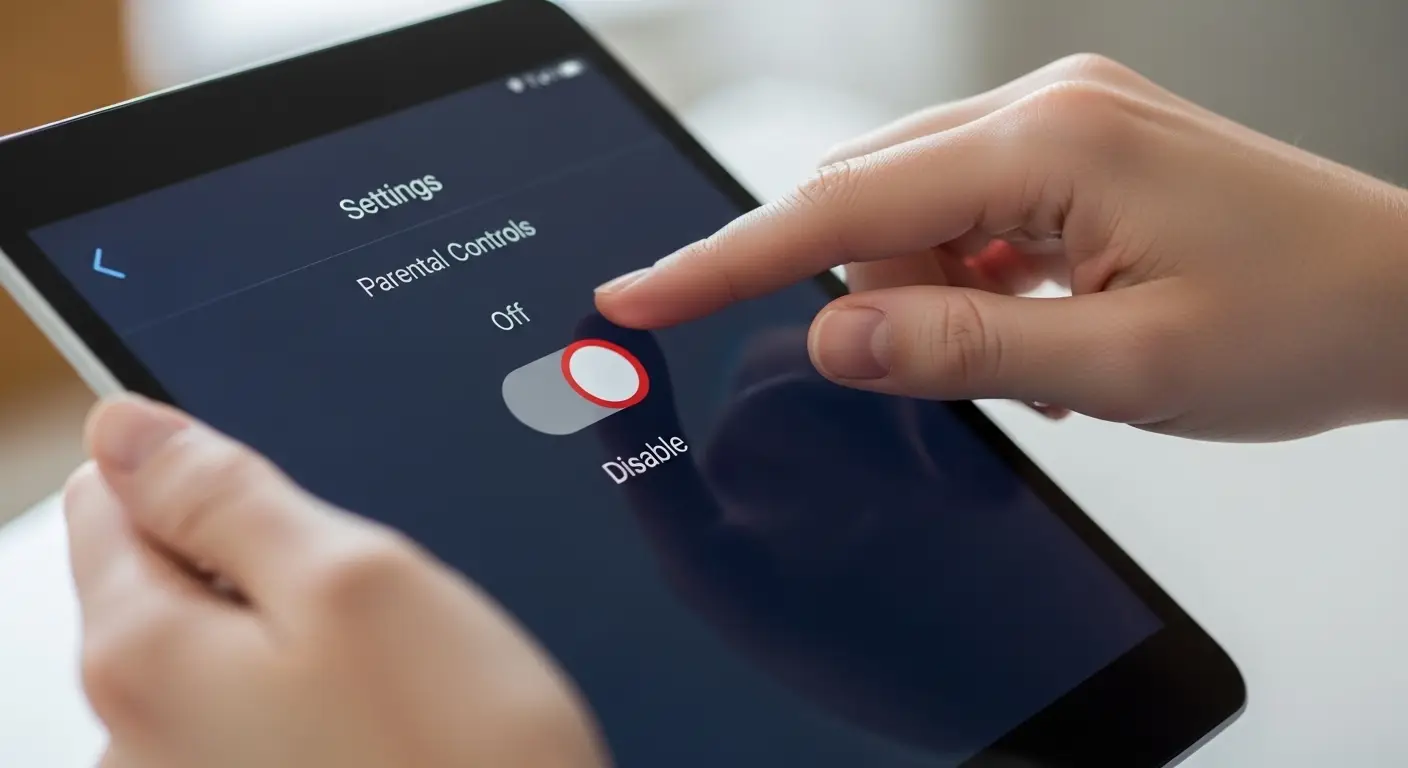
How Do I Turn Parental Controls Off
Parental controls are designed to help manage screen time, restrict content, and protect users from inappropriate material. However, there are many legitimate reasons why someone may want to disable them—such as reaching adulthood, changing usage needs, or managing a device independently.
If you’re asking how do I turn parental controls off, this detailed guide will walk you through the process across different devices and platforms. The steps are explained clearly, safely, and in a way that works for real-world users.
Understanding Parental Controls Before Turning Them Off
Before disabling parental controls, it’s important to understand how they work and what changes once they are removed.
Parental controls can limit:
- Screen time usage
- App downloads and purchases
- Web content and searches
- Game ratings and online interactions
- Privacy and location sharing
Once turned off, the device will no longer enforce these restrictions. Make sure you have the correct permission or account access before proceeding.
How Do I Turn Parental Controls Off on Mobile Devices
Smartphones and tablets are the most common devices where parental controls are enabled.
Turning Off Parental Controls on Android Devices
On Android devices, parental controls are typically managed through system settings or family management tools.
Steps:
- Open Settings
- Tap Digital Wellbeing & Parental Controls
- Select the supervised account
- Choose Remove supervision
- Enter the parent or administrator PIN
- Confirm removal
After completion, all restrictions linked to the supervised account will be disabled.
Turning Off Parental Controls on iPhone or iPad
Apple devices use built-in screen management features for parental restrictions.
Steps:
- Open Settings
- Tap Screen Time
- Select Turn Off Screen Time
- Enter the Screen Time passcode
- Confirm your selection
This will remove content restrictions, app limits, and usage monitoring.
How Do I Turn Parental Controls Off on Computers
Parental controls are also commonly enabled on desktop and laptop systems.
Turning Off Parental Controls on Windows
Windows allows parental controls through user accounts.
Steps:
- Open Settings
- Go to Accounts
- Select Family & other users
- Choose the child account
- Disable activity reporting and restrictions
Make sure you are logged in as the administrator to apply these changes.
Turning Off Parental Controls on macOS
Mac systems manage parental restrictions through account settings.
Steps:
- Open System Settings
- Select Screen Time
- Choose the user account
- Toggle Screen Time Off
- Enter the administrator password
This removes all usage limits and content filters for that account.
How Do I Turn Parental Controls Off on Gaming Consoles
Gaming consoles often have strong parental restriction systems.
Turning Off Parental Controls on PlayStation
Steps:
- Open Settings
- Go to Family and Parental Controls
- Select Family Management
- Choose the restricted account
- Disable restrictions or remove family supervision
- Enter the family manager password
Turning Off Parental Controls on Xbox
Steps:
- Sign in to the parent account
- Open Settings
- Navigate to Account
- Select Family Settings
- Choose the child profile
- Turn off content and time restrictions
Changes usually apply immediately across the console.
Turning Off Parental Controls on Nintendo Devices
Steps:
- Open System Settings
- Select Parental Controls
- Enter the PIN
- Choose Turn Off
- Confirm the action
Once disabled, all game and online restrictions are removed.
How Do I Turn Parental Controls Off Without a PIN?
This is a common concern. However, parental controls are designed to prevent unauthorized changes.
If you don’t have the PIN:
- Recover it through the registered email
- Use account recovery options
- Contact the device manufacturer’s official support
- Ask the account administrator for permission
Avoid unofficial methods, as they may violate terms of service or compromise device security.
Common Issues When Turning Off Parental Controls
Changes Not Applying Immediately
Restart the device to ensure settings update properly.
Multiple Accounts Still Restricted
Each account must be adjusted individually.
Forgotten Credentials
Use official recovery options to regain access.
Important Things to Consider Before Disabling Parental Controls
Before removing restrictions, keep these points in mind:
- Content access becomes unrestricted
- Purchase approvals are disabled
- Screen time tracking stops
- Online interactions increase
If the device is used by minors, consider adjusting limits instead of fully disabling controls.
Is It Safe to Turn Parental Controls Off?
Yes—when done responsibly.
For adults or independent users, turning off parental controls allows full device functionality. For families, it’s best to review settings periodically and adjust them as needs change rather than removing them entirely.
Frequently Asked Questions
How do I turn parental controls off permanently?
You can disable them permanently by removing supervision or turning off screen management features using the administrator account.
Will turning off parental controls delete data?
No. It only removes restrictions. Apps, files, and accounts remain intact.
Can parental controls be turned back on later?
Yes. You can re-enable them at any time through the same settings.
Final Thoughts
If you’ve been wondering how do I turn parental controls off, the process is straightforward once you have the correct access and follow the proper steps. Whether you’re managing a phone, computer, or gaming console, understanding the settings ensures a smooth and secure experience.
Always make changes responsibly, keep account credentials safe, and adjust restrictions based on real needs—not assumptions.
If you want, I can also:
- Optimize this further for featured snippets
- Add FAQ schema suggestions
- Rewrite it for even stronger SEO intent
- Adapt it for a specific device only