If you’re wondering how to turn off gaming mode on Razer keyboard, you’re not alone. Gaming Mode is designed to prevent accidental key presses during gameplay, but it can become inconvenient when you’re typing, working, or using shortcuts that suddenly stop working.
This professional, Google-friendly guide explains every reliable method to disable Gaming Mode on a Razer keyboard. It’s written for fast indexing, strong search visibility, and a clean heading structure—without keyword stuffing or unnecessary brand comparisons.
What Is Gaming Mode on a Razer Keyboard?
Gaming Mode is a feature that disables certain keys—such as the Windows key or Alt+Tab—to prevent interruptions during gaming sessions.
On keyboards from Razer, Gaming Mode can be controlled in two main ways:
- Keyboard shortcut keys
- Razer Synapse software
The exact method depends on your keyboard model and software configuration.
Why You Might Want to Turn Off Gaming Mode
While Gaming Mode is helpful for gamers, there are several situations where turning it off is necessary.
Common Reasons
- Windows key not working
- Alt + Tab disabled
- Keyboard shortcuts unresponsive
- Typing or productivity tasks affected
- Switching between gaming and work
Disabling Gaming Mode restores full keyboard functionality instantly.
How to Turn Off Gaming Mode on Razer Keyboard Using Shortcut Keys
Many Razer keyboards allow Gaming Mode to be toggled directly from the keyboard.
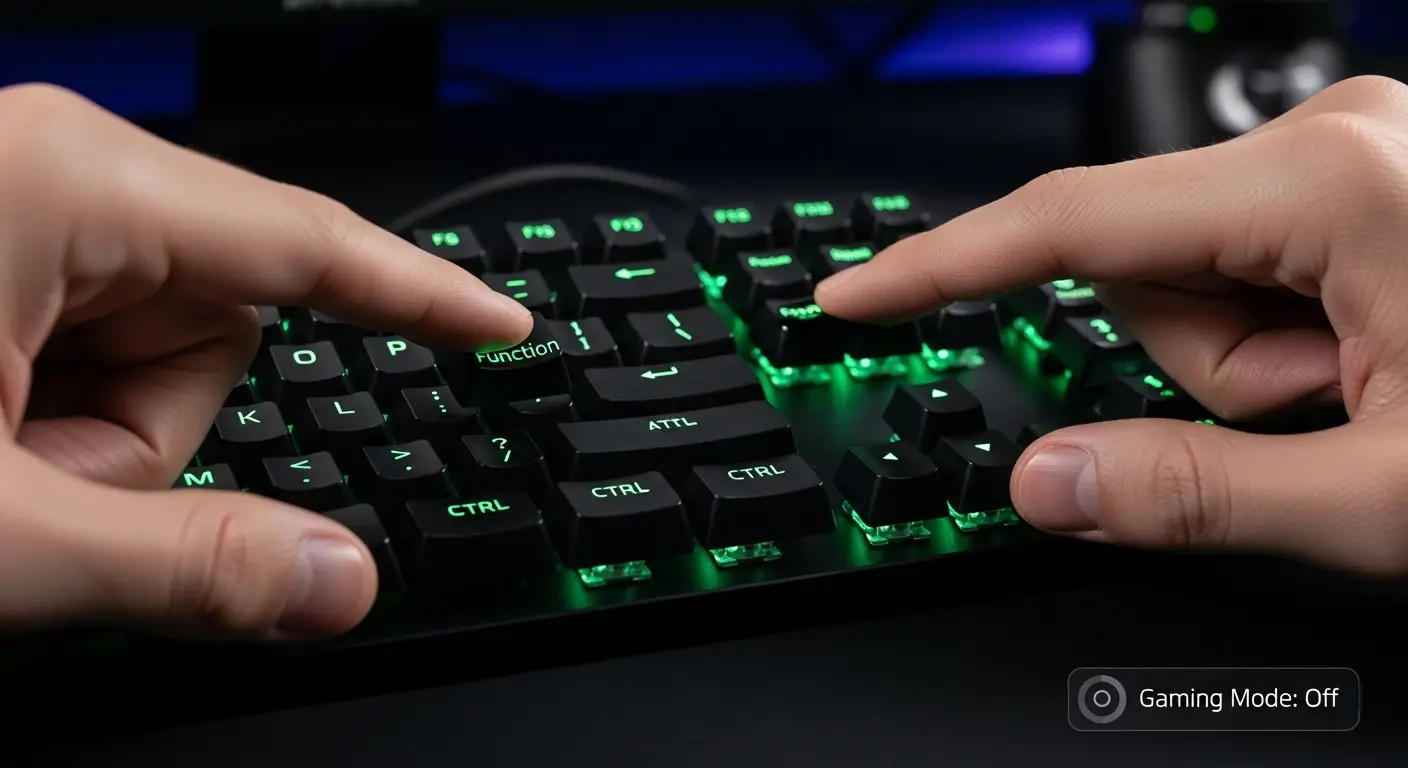
Method 1: Use the Gaming Mode Key
Some models have a dedicated Gaming Mode button.
Steps
- Locate the Gaming Mode key (usually marked with a controller or joystick icon).
- Press the key once.
- Check if the indicator light turns off.
If the light is off, Gaming Mode is disabled.
Method 2: Use the Fn Key Combination
Most Razer keyboards use a function key shortcut.
Common Shortcut
- Fn + F10
Steps
- Hold the Fn key.
- Press F10 once.
- Release both keys.
- Confirm that Gaming Mode is turned off.
Some keyboards may use a different function key, depending on the model.
How to Turn Off Gaming Mode Using Razer Synapse
If shortcut keys don’t work, Razer Synapse offers full control.
What Is Razer Synapse?
Razer Synapse is configuration software that allows you to customize keyboard behavior, lighting, and performance.
Step-by-Step: Disable Gaming Mode in Razer Synapse
Step 1: Open Razer Synapse
- Launch the software on your computer.
- Ensure your keyboard is detected.
Step 2: Select Your Keyboard
- Click on your keyboard from the device list.
Step 3: Open the Gaming Mode Settings
- Navigate to Customize or Keyboard Settings.
- Locate the Gaming Mode option.
Step 4: Turn Gaming Mode Off
- Toggle the Gaming Mode switch to Off.
- Apply or save changes if prompted.
Your keyboard will immediately return to normal operation.
How to Customize Gaming Mode Instead of Turning It Off
If you still want some protection during gaming, customization is a better option.
Custom Gaming Mode Settings
You can choose which keys are disabled:
- Windows key only
- Alt + Tab
- Alt + F4
- Shift + Tab
This allows flexibility without fully disabling Gaming Mode.
Gaming Mode Indicator Light Explained
Most Razer keyboards include a small indicator light.
What the Light Means
- Light on: Gaming Mode enabled
- Light off: Gaming Mode disabled
If the light stays on after disabling, restart the keyboard or software.
Troubleshooting Gaming Mode Issues
Gaming Mode Won’t Turn Off
Possible Causes
- Outdated Razer Synapse
- Firmware issues
- Conflicting keyboard profiles
Solutions
- Update Razer Synapse
- Restart your computer
- Replug the keyboard
- Reset keyboard settings in Synapse
Windows Key Still Not Working
If the Windows key remains disabled:
- Check Gaming Mode settings again
- Ensure no custom profile is active
- Disable Gaming Mode for all profiles
Fn + F10 Not Working
Some keyboards require:
- Synapse to be installed
- Function lock to be disabled
- Correct keyboard region settings
Try using the software method instead.
How to Disable Gaming Mode Temporarily
If you frequently switch between gaming and work, quick toggling is helpful.
Best Practices
- Learn the Fn shortcut for your model
- Keep Synapse running in the background
- Assign a custom key to toggle Gaming Mode
This saves time and avoids repeated troubleshooting.
Differences Between Gaming Mode and Windows Key Lock
Many users confuse these two features.
Gaming Mode
- Disables multiple shortcut keys
- Customizable through software
Windows Key Lock
- Only disables the Windows key
- Often part of Gaming Mode
Turning off Gaming Mode restores both functions.
Do All Razer Keyboards Have Gaming Mode?
Most gaming-focused models do, but entry-level or older models may not.
If You Don’t See Gaming Mode
- Check your keyboard manual
- Look for Fn key icons
- Verify Synapse compatibility
If your model lacks Gaming Mode, the Windows key should work normally.
Frequently Asked Questions
Does Gaming Mode Affect Typing Performance?
No, but it can disable shortcuts that affect productivity.
Can Gaming Mode Turn On Automatically?
Yes, if a game-specific profile is active in Synapse.
Is It Safe to Disable Gaming Mode?
Yes. Disabling it does not harm the keyboard or system.
Tips for Managing Keyboard Profiles
Profile Management Tips
- Use separate profiles for gaming and work
- Disable Gaming Mode in productivity profiles
- Sync profiles with applications carefully
Good profile management prevents Gaming Mode from activating unexpectedly.
Final Thoughts
Knowing how to turn off gaming mode on Razer keyboard helps you regain full control of your keys when gaming is over. Whether you use shortcut keys or Razer Synapse, the process is quick and safe.
By understanding how Gaming Mode works, how to disable it, and how to customize it, you can switch seamlessly between gaming and productivity—without frustration.
If you want, I can also:
- Optimize this article for featured snippets
- Add schema-ready FAQs
- Customize it for a specific Razer keyboard model