The Nintendo Switch Pro Controller is widely praised for its comfortable grip, responsive buttons, and long battery life traits that make it a great choice for PC gaming too. Whether you’re playing platformers, shooters, or racing games, the Pro Controller can deliver a premium experience on your laptop or desktop.
This complete guide walks you through every step: how to connect the controller to your PC via USB or Bluetooth, optimize settings in Steam and other platforms, and troubleshoot common issues for smooth gameplay. We’ll also cover advanced customization options and tips to get the most out of your controller. By the end, you’ll be ready to use your Pro Controller like a native PC gamepad.
Understanding Compatibility
1. Why Use a Pro Controller on PC?
Although designed for the Nintendo Switch, the Pro Controller is fully capable on Windows and many PC games support it natively. Benefits include:
- Ergonomic design with full button layout
- Motion controls (select games)
- Long battery life
- Reliable Bluetooth connectivity
2. System Requirements
Before you begin, ensure your system meets these basic requirements:
- Windows 10 or later (Windows 11 recommended)
- Bluetooth support (for wireless connection) or available USB port
- Updated drivers and system updates
Connecting Your Pro Controller via USB
➡️Step-by-Step Wired Setup
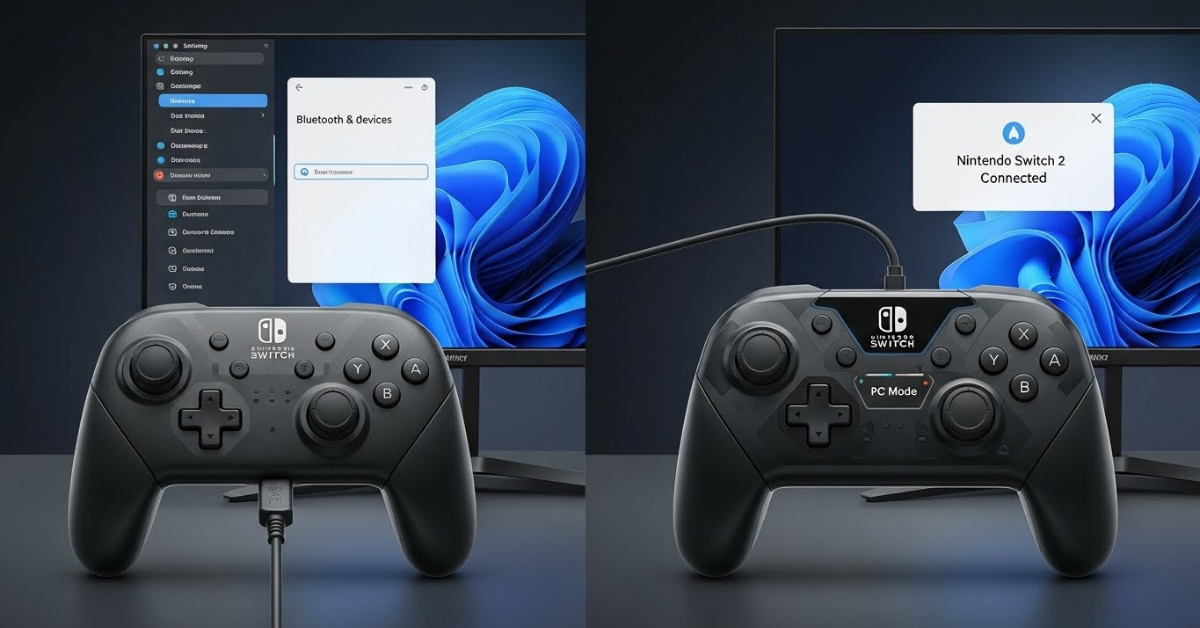
- Plug in your Pro Controller using a USB-C to USB-A (or USB-C) cable.
- Windows should detect the controller automatically.
- Once drivers install, the controller will function in most games that support gamepads.
➡️Benefits of a Wired Connection
- Stable performance with no input lag from wireless interference
- No need to worry about battery life mid-game
- Ideal for competitive or fast-paced titles
Bluetooth Wireless Setup
1. Enable Bluetooth on Your PC
- Open Settings > Bluetooth & Devices on Windows.
- Turn on Bluetooth if it isn’t already enabled.
2. Pairing the Controller
- Press and hold the Sync Button on the top of the Pro Controller until the lights start flashing.
- In Windows’ Bluetooth menu, select the controller when it appears in the list.
- It should connect and show as a paired device.
3. Wireless Tips
- Keep your controller within 10 meters for stable connectivity
- Interference from other devices may affect responsiveness
- Reconnect quickly by turning on the controller after it has been paired once
Configuring in Steam
➡️Steam’s Built-In Support
Steam includes native support for the Pro Controller, allowing customization and profile management.
- Open Steam and go to Settings > Controller > General Controller Settings
- Enable Switch Pro Configuration Support
- Connect your controller (wired or wireless)
- Customize button mapping, dead zones, and sensitivity
➡️Using Steam Big Picture Mode
Big Picture Mode simplifies controller navigation by providing a console-like interface. Access it via the upper-right corner of the Steam client.
Using a Pro Controller with Non-Steam Games
1. Third-Party Tools
Some games outside of Steam may not recognize the Pro Controller by default. In those cases, tools like Steam Input, x360ce, or reWASD can translate controller input to make the Pro Controller work as a standard Windows gamepad.
2. Configuration Steps for Non-Steam Titles
- Add the game to Steam Library as a Non-Steam game
- Enable controller support using Steam Input
- Launch the game through Steam to ensure controls are recognized
Controller Customization and Calibration
Adjusting Button Mapping
- Steam Configuration: You can remap individual buttons, swap triggers, or create custom layouts for each game.
- Profiles: Save different control profiles for different games or genres.
Calibrating Analog Sticks
Windows offers a controller calibration tool:
Search Set up USB game controllers in the Windows search bar
Select your Pro Controller
Choose Properties > Calibrate
Follow the on-screen prompts
Proper calibration helps reduce drift and ensures accurate movement.
Utilizing Motion Controls and Advanced Features
1. Motion Controls Support
Some games and emulators support motion controls from the Pro Controller. Enable this feature in supported titles or via Steam Input.
2. HD Rumble
Not all PC games support HD Rumble, but titles that do can benefit from rich, nuanced vibration feedback.
Troubleshooting Common Issues
➡️Controller Not Connecting Wirelessly
- Ensure Bluetooth is enabled
- Remove and re-pair the controller
- Turn off interfering devices nearby
➡️Input Lag or Delay
- Use a wired connection for competitive play
- Update Bluetooth drivers
- Reduce wireless interference
➡️Buttons Not Responding in Games
- Verify controller support in game settings
- Use Steam Input or third-party mapping tools
- Check for driver updates
Tips for Optimal Performance
1. Keep Firmware Updated
Although Windows doesn’t update controller firmware directly, Nintendo firmware updates (via Switch) may improve performance and stability.
2. Reconnect Wisely
Put the controller to sleep between uses to conserve battery, and reconnect via Bluetooth for seamless transitions.
3. Use Quality Cables
For wired play, use a high-quality USB-C cable to ensure stable connection and charging
Comparing Controller Options for PC
Pro Controller vs. Xbox Controller
- Xbox Controllers: Plug-and-play on Windows with broad game support
- Pro Controller: Great ergonomics and customization through Steam, but may require setup steps for non-Steam games
Pro Controller vs. DualSense
- DualSense: Extra features like adaptive triggers and haptics supported in select titles
- Pro Controller: More universal compatibility on PC, lower barrier to use for most games
Frequently Asked Questions (FAQs)
Conclusion
Using a Nintendo Switch Pro Controller on PC is a powerful way to elevate your gaming experience. With both wired and wireless capabilities, customizable layouts, and broad compatibility across Steam and many non-Steam games, it offers comfort and versatility beyond traditional peripherals.
By following this complete setup guide from connection to calibration and troubleshooting, you’ll unlock the full potential of your controller on PC. Whether you are diving into indie titles, competitive shooters, or immersive RPGs, your Pro Controller can become a reliable and responsive part of your setup.